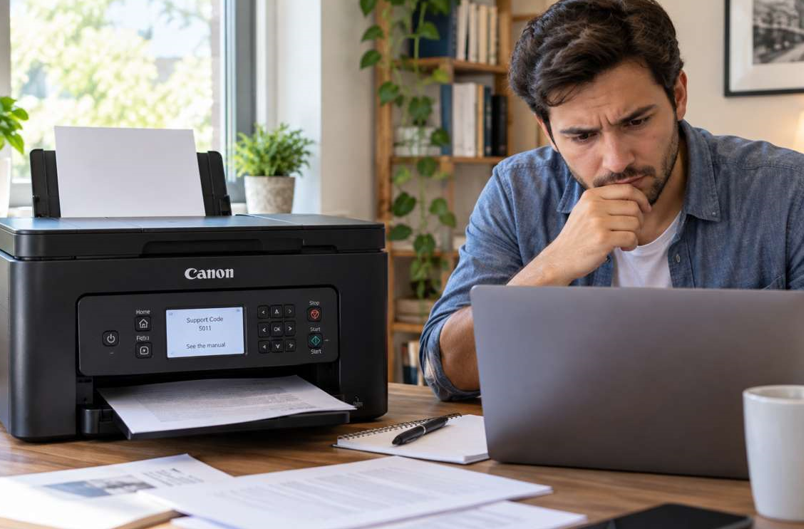

You press print, the document disappears, and nothing comes out. The printer is switched on, the lights look normal, and still your Canon printer is not printing. It’s frustrating, especially when a deadline is close.
The good news is that this problem is usually simple. Most of the time it comes down to a connection issue, a stuck job or a cartridge problem, and you can fix it yourself in a few minutes. Here are eight fixes to try before you call anyone.
Why Is My Canon Printer Not Printing?
There are a handful of common causes:
- A weak or lost Wi-Fi or USB connection
- A stuck document in the print queue
- The printer showing as offline or paused
- Low or empty toner or ink
- A paper jam or a paper feed problem
- An outdated or damaged driver
- A cartridge that isn’t seated properly
Once you know the likely cause, the right fix is easier to find.
8 Fixes for a Canon Printer That Won’t Print
Fix 1: Check the Basics
Make sure the printer is switched on, connected to power and free of error lights. Check that there is paper in the tray and no visible jam. Look at the display or the blinking lights, as they often point straight to the problem.
Fix 2: Restart the Printer and Computer
Turn off the printer and computer, unplug the printer for a minute, then switch everything back on. This clears small glitches and refreshes the connection between the two devices.
Fix 3: Check the Connection
If you print wirelessly, make sure the printer and your computer are on the same Wi-Fi network. Check the wireless light on the printer. If it’s blinking or off, reconnect it using the printer’s setup menu. You can also try a USB cable. If the printer works over USB, the issue is your wireless connection and not the printer.
Fix 4: Clear the Print Queue
One failed document can block every job behind it. Open the print queue on your computer, select Cancel All Documents, then send a single test page. This simple step solves many “printer not responding” cases.
Fix 5: Make Sure the Printer Is Not Offline or Paused
On a Windows computer, open Settings → Printers & Scanners, select your Canon printer and click Open Print Queue. In the Printer menu, make sure “Use Printer Offline” and “Pause Printing” are both unticked. Also set the Canon printer as your default printer, so jobs don’t go to the wrong device.
Fix 6: Check the Toner or Ink
An empty or badly fitted cartridge can stop a printer completely. Open the cover, remove the cartridge, check that it’s clean and push it back in until it clicks. If the level is low, or you’ve had repeated cartridge errors, switching to quality Canon toner cartridges that match your exact printer model keeps prints sharp and avoids many avoidable problems. Always confirm the model number before buying.
Fix 7: Clear Any Paper Jam
Turn off the printer and open the rear and front covers. Pull any stuck paper out slowly, in the direction of the paper path, and check for small torn pieces. Even a tiny scrap can stop the printer from working. Reload fresh, dry paper and avoid overfilling the tray.
Fix 8: Update or Reinstall the Driver
An old or damaged driver is a frequent cause, especially after a Windows or macOS update. Remove the printer from your computer, then download the latest driver for your exact model from Canon’s official support website and install it again. This often fixes a printer that suddenly stops responding.
Simple Habits to Keep Your Canon Printer Working
- Use good-quality paper and store it somewhere dry
- Don’t overfill the paper tray
- Replace cartridges before they run completely empty
- Keep the printer clean and away from dust and direct sunlight
- Print a few pages every week so the printer doesn’t sit idle
- Update drivers and firmware every few months
Still Not Printing? Know When to Get Help
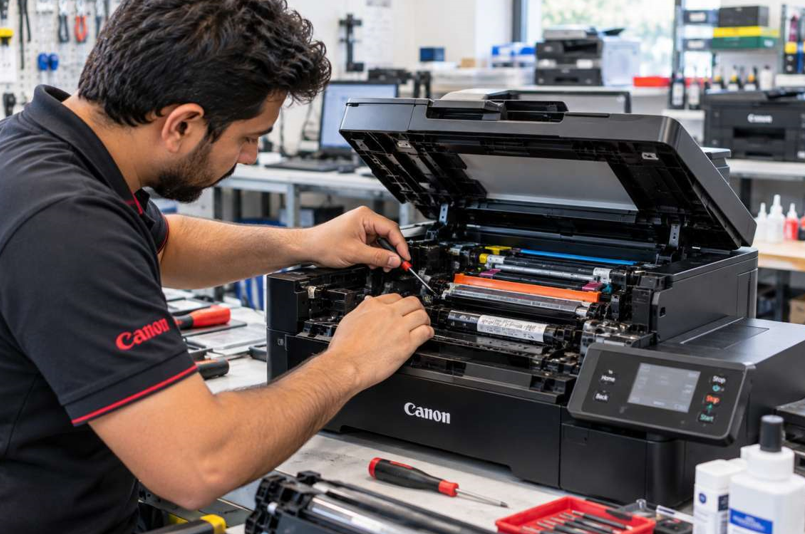
If you’ve tried all eight fixes and your Canon printer still won’t print, the problem may be inside the machine. A trusted Canon printer repair in Dubai service can test the hardware and find the exact fault. Consider getting help if:
- The printer shows the same error after a restart
- The printer won’t connect to any computer or network
- You hear grinding or clicking noises
- You smell burning or notice overheating
- Prints stay poor even with a new cartridge
Opening a printer without training can damage delicate parts and turn a small repair into an expensive one. A technician can read the fault properly and often get you printing again faster than buying a new printer.
Final Thoughts
A Canon printer that won’t print is annoying, but the cause is usually small: a lost connection, a stuck job, a loose cartridge or an old driver. Work through the fixes in order, keep your printer clean, and use the right cartridges. If nothing works, don’t waste your day on it. Get professional help and get back to work.