ByJohn A
Mac Cleaner App for macOS: What to Do When “Storage Almost Full” Appears
A low-storage alert rarely shows up at a quiet moment. It tends to pop up halfway through a video export, a system update or a large download you have been waiting on. The first instinct is to start deleting whatever looks big, and that rushed clearing is often how people lose files they still need. A Mac cleaner app for macOS can help, though it may not be the first thing you open.
The order of your steps matters more than the tool. What follows is a calm sequence for that alert. It covers what to do in the next few minutes, what macOS already handles, and where a Mac cleaner app for macOS actually earns its place.
Protect Your Open Work Before Freeing Up Space
Start with whatever you have open. Save every document now, before the disk gets any tighter, and quit the apps you aren’t using.
If an export or download failed when the alert appeared, look for the half-finished file. Partial exports can sit in a folder taking up space while producing nothing useful.
Need room for just one task, like finishing an update? Apple suggests starting up in safe mode, which clears certain system caches. macOS rebuilds those caches later, so treat this as breathing room, not a fix.
See also: Shopping Through a Dyson Online Store: What to Expect
What Your Mac Storage Settings Already Tell You
Once your work is safe, open System Settings, click General, then Storage. From macOS Ventura onwards, this screen splits your used space into categories. The figures update as you clear files.
macOS does some tidying without asking. When space runs short, it clears caches and logs that are safe to remove, along with interrupted downloads, staged updates and Safari website data. It can also empty items that have sat in the Trash for more than 30 days, if you switch that option on.
A few manual steps from Apple’s own list are worth a minute each:
- Go through your Downloads folder and remove what you no longer need.
- In Mail, erase junk mail and deleted items from the Mailbox menu.
- Move large media, such as a Photos or iMovie library, to an external storage device.
Then there’s System Data. Apple describes it as a catch-all for files that don’t fit the other categories. Storage settings show its size, but not what’s inside, and that is where many people get stuck.
The Trash Detail Most People Miss
Here is the part that trips people up. Moving files to the Trash doesn’t free up space until you empty it.
So in a real squeeze, emptying the Trash is often the fastest win. Even so, the Trash is also your undo button. It holds the last copy of anything you deleted by mistake.
The sensible middle ground is to glance through it before emptying. Anything you recognise as a mistake can go straight back where it came from.
Where a Mac Cleaner App for macOS Fits After the Alert
Storage settings stop at totals. A cleaner earns its place by showing you the individual files behind those totals, with a way to act on them.
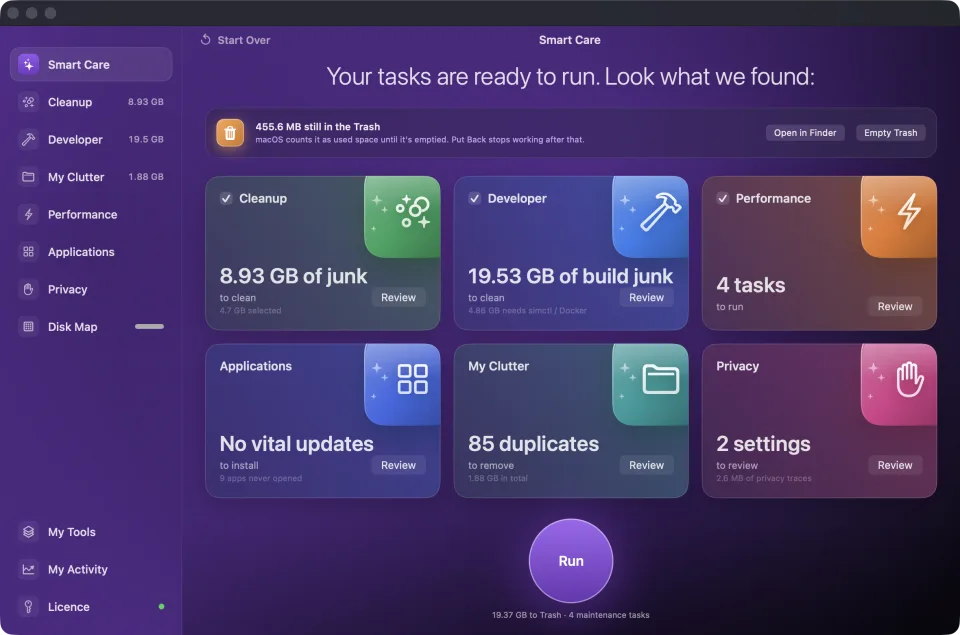
Broomkit’s Disk Map draws your storage as a treemap. It colours each block as safe to remove, needs review, or can’t be reclaimed. A Smart Care scan then sorts what it finds into cards for Cleanup, Developer, Performance and Privacy.
Behind those cards are categories such as app caches, package caches, old installers, duplicates, logs, and large, old files. Broomkit walks your whole home folder, hidden directories included, and counts each path only once.
In Cleanup Manager, every file shows a tick box and its full path. Anything Broomkit infers rather than knows, like old installers or app leftovers, starts unticked. You decide what goes.
Approved files move to the Trash, so the Trash detail above applies here too. You gain the space only after you empty it, not before.
What Not to Delete When Your Mac Storage Is Almost Full
Pressure makes some folders look tempting. A few of them cause far more trouble than the space they return:
- /System/Library/Caches, which holds kernel caches your Mac relies on to start up.
- ~/Library/Containers as a whole, since apps keep live data there, including your Notes database.
- Swap files and sleep images, which macOS manages by itself.
A couple of gigabytes from these folders can cost you a Mac that wakes slowly or apps that crash. Broomkit never touches any of them, and a manual clean-up shouldn’t either.
Keeping the Storage Alert from Coming Back
Caches and logs build up again with normal use, so one clean-up won’t last forever. A short check every month or two keeps the alert away far better than one big panic session.
It also helps to know which apps build up the most on your Mac. Once you know, you can check those first next time, in five minutes rather than an afternoon.
Want to see what is filling your disk before the next alert arrives? Broomkit’s 3-day trial opens every feature, with no account and no card, so you can see your own numbers first.